Use the official Ubuntu image as the base image
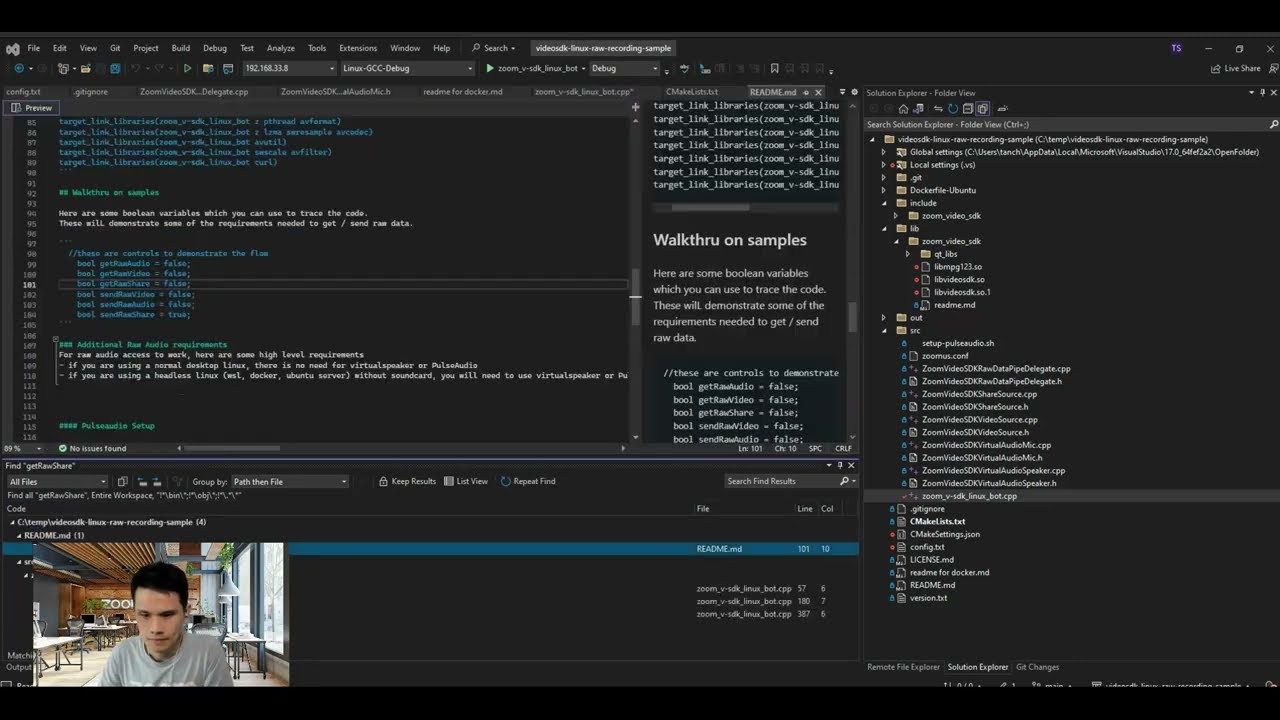
View Zoom Video SDK for Linux Raw Recording Sample App Walkthrough on YouTube.
The Zoom Video SDK Linux sample app provides a great starting point to work on raw data on the Video SDK. If you are looking at applying computer vision and AI to video, audio, and text, this headless sample provides code snippets on how to access raw video, raw audio and raw share data.
This guide will going over:
- Running the instance on docker using a dockerfile
- Basic configuration to get it running
- Basic information about raw data support format
What to bring
- Video SDK Key and Secret. You can sign up for a Video SDK account here
- Runtime environment: Linux or Docker
Dockerfile
A sample dockerfile is provided as part of the repository. We included this dockerfile in the repo to help quickly deploy and scale up instances of Video SDK.
Base
This dockerfile is generated for ubuntu:22.04. I’ve tested on different Linux distributions such as centos as well, but if you are using a different Linux distribution, you may need to change some of the package names.
While working with raw audio, if you are working in an environment where the system does not detect a physical sound card / sound device, you will need Alsa and Pulseaudio. Examples of such scenarios are Linux on cloud computing provides, and docker containers. These 2 libraries will be used to access raw audio, by creating a virtual sound card.
# Use the official Ubuntu image as the base image
FROM ubuntu:22.04
# Install necessary dependencies
RUN apt-get update && \
    apt-get install -y build-essential cmake
RUN apt-get install -y pkgconf
RUN apt-get install -y gtkmm-3.0
Dependencies
The following dependencies are necessary for the Video SDK on Linux to run on Ubuntu:
RUN apt-get update && apt-get install -y --no-install-recommends --no-install-suggests \
    libx11-xcb1 \
    libxcb-xfixes0 \
    libxcb-shape0 \
    libxcb-shm0 \
    libxcb-randr0 \
    libxcb-image0 \
    libxcb-keysyms1 \
    libxcb-xtest0
 RUN apt-get install -y libglib2.0-dev \
    liblzma-dev \
    libxcb-xkb1 \
    libgbm1 \
    libxtst6 \
    libgl1 \
    libnss3 \
    libasound2\
    libpulse0
RUN apt-get install -y pulseaudio
RUN apt-get install -y libcurl4-openssl-dev
Build and Entry
The build happens on the docker instance.
There is a main script which calls 2 other secondary scripts. One of them will set up pulseaudio and the other will start the Video SDK for Linux app.
# Set the working directory
WORKDIR /app
# Copy your application files to the container
COPY / /app/
# Execute additional commands
RUN rm -rf bin && rm -rf build  && cmake -B build && cd build && make
# Set the working directory to the binary folder
WORKDIR /app/bin
# Define a shell script to run multiple commands
RUN echo '#!/bin/bash' > /app/bin/run.sh \
    && echo '/app/src/setup-pulseaudio.sh' >> /app/bin/run.sh \
    && echo './zoom_v-sdk_linux_bot' >> /app/bin/run.sh
# Make the run script executable
RUN chmod +x /app/bin/run.sh
# Run the meetingSDKDemo binary when the container starts
CMD ["/app/bin/run.sh"]
#CMD ["/bin/bash"]
#CMD ["./zoom_v-sdk_linux_bot"]
Configure the App
This sample utilizes config.txt to retrieve necessary information to authenticate the SDK and join Video SDK Sessions. The config.txt also serves as an application flow control to turn on/off certain features.
session_name: "yoursessionname"
session_token: "xxxx.yyyy.zzzz"
session_psw: "12345678"
GetVideoRawData: "true"
GetAudioRawData: "true"
SendVideoRawData: "false"
SendAudioRawData: "false"
Main Starting Point
The starting point of the code is src/zoom_v-sdk_linux_bot.cpp
The application starts from the int main(int argc, char* argv[]) method runs in a message loop. The key process which happens here are
- Read values from config.txt
- Attempt to join session using values from config.txt
- Check the “flow control variables” and execute the samples accordingly if
trueGetVideoRawDataGetAudioRawDataSendVideoRawDataSendAudioRawData
Raw Audio, Video and ShareScreen
The format used for sending and receiving raw audio is PCM format.
The format used for sending and receiving raw video is YUV420 frame format.
The format used for sending and receiving raw ShareScreen is YUV420 frame format as well.
The format used for sending and receiving raw audio over ShareScreen channel is PCM format.